Security and Privacy


Introduction
You can do a lot to protect your accounts from theft and keep your personal activities secure online. Depending on where you live, the work you do, or other issues, you might have reason for concern about your safety engaging with digital information and tools. You might also have concerns about the safety of the people you communicate with. Digital privacy and security practices cover a broad range of activities but in the following you will learn how to better protect yourself with a few essential habits and tools.
Activities that we use our computers, phones, or other digital devices for generate data. Even when we feel that we are doing something on our own, third-parties frequently access and track this data. We know when we enter personal information to sign-up for a new app, but it’s frequently less obvious how that app or a web browser permits other parties to access the data produced during use.
Some data such as a phone number could identify us, while other data, such as the city our internet connection is in, might not. Nevertheless, enough data together can sometimes permit another party to identify us. That other party could have criminal intent, it could be an authoritarian government, or it could be something benign. However, regardless of how benign it might appear, that third-party now has data that if misused or used in unexpected ways in the future will jeopardize our well-being.
Risky practices online
You might forego some privacy in exchange for being able to use a particular service or application but be cautious, it’s easy to get into online behaviours that risk your privacy and security. Here are five risky behaviours to be aware of:
- Interacting with insecure websites. For example, indicators appear in the address bar of browsers like Firefox and Chrome, which tell you about the security of the site you’re currently browsing.
- Permitting your web browser to expose more data than is necessary. Default settings might permit other sites to place or access cookies inappropriately and track your online activities (see the Data Detox Digest).
- Allowing your social media profile information to be accessible to people or services that you do not know or trust.
- Installing software from a dubious source (it might turn out to be malicious).
- Registering for online services without awareness of their background.
Ask yourself questions such as:
- Is this site using secure protocols or other technologies?
- Have I reviewed the default settings of the applications I’m using?
- What does the organization providing the service I’m about to use do with user data? What sort of accountability can I expect?
- Is the organization or source a commercial entity, individual, non-profit, government, or some other entity? Motivations vary.
- What jurisdiction does the organization operate under and where does it store its data?
- How comfortable am I trusting the source this software or service comes from?
What will compromise your security
A person’s digital security can
be compromised via technical means but also
frequently in the form of simple tricks that
rely on trust or lack of awareness. Those tricks
are often referred to as phishing. An
example of phishing would be receiving an e-mail
message from a source that looks familiar and
includes a link to click. If you do not check
the underlying e-mail address that sent the
message or do not check where the link goes
before clicking it, you may unwittingly provide
information to a malicious party.
Your devices can be infiltrated through the
installation of insecure applications even if
they appear harmless. Sometimes opening a file
attached to a message can result in the
installation of a malicious program.
Permitting an application to access unnecessary
features on your device can enable a third-party
to gain access where it shouldn’t have it. This
guide on malware
provides techniques to protect your computer and
mobile devices against these sorts of attacks.
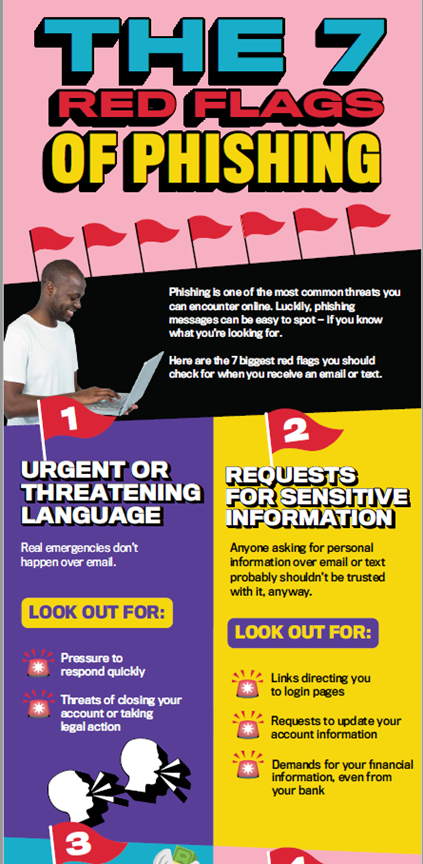
Image source: The 7 red flags of phishing from Get Cyber Safe by Communications Security Establishment, Government of Canada.
Five routines for privacy and security
Changing your habits and using privacy-oriented tools reduces what other parties can access about your activities. Implement the following routines to improve your online privacy and security.
- Make your information unreadable by encrypting it. Only those permitted can make it readable again (decrypting often involves a password and an application). You can encrypt documents on your computer or data that you are transmitting. For example, check that your web browser shows “https” rather than “http” in the address bar.
- Use a password manager (e.g. Bitwarden or KeePassXC) to securely store and generate passwords. Enable multi-factor authentication to decrease the likelihood of unauthorized access to your accounts. Learn how from this guide for creating and maintaining strong passwords.
- Have a secure file backup strategy in the event that a malicious party gains control of your computer. Using an automated cloud backup service should include a no-knowledge/zero-access assurance that even the provider cannot read your information (see this guide for backing up and recovering information).
- Switch to secure services for messaging, e-mail, and office productivity types of tools. Examples include Signal, Proton Mail, and CryptPad. See more examples from PrivacyTools.io.
- Connecting to a virtual private network (e.g. Proton VPN or Mozilla VPN) conceals your true Internet connection from surveillance and provides other security benefits. Discover how VPNs work from the Center for Democracy & Technology. This article will help you choose a VPN.
Conclusion
New techniques regularly emerge for encroaching on people’s online privacy. It won’t be possible to perfectly secure all your digital activities on your mobile devices and computers. However, you can decrease the likelihood that you will have to deal with the consequences of having your personal data exposed. Continue to evaluate the services and applications you use while also taking advantage of new, more secure routines. We recommend the following resources for shoring up your privacy and security online.
- The Data Detox Kit is especially useful for your mobile devices and social media presence.
- Zebra Crossing is an easy-to-use checklist that covers the issues raised in this guide and many more.
- Security-in-a-Box is a long-running site of resources, explanations, tips, and approaches to digital security.
- The Electronic Frontier Foundation’s Surveillance Self-Defense site provides many guides on specific types of security tools.
- Concordia’s FAQ on protecting your identity and other security advice.
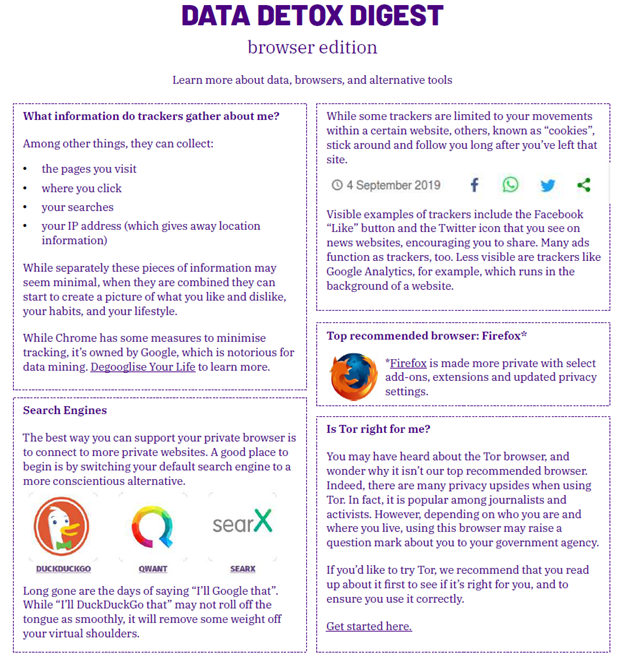
Data Detox Digest: browser edition by Tactical Tech is licensed as CC BY-NC-ND 4.0
Activities

Reflection

Let’s reflect on digital privacy and security. Read this article on Seven Steps to Digital Security. Think about these steps in relation to your current practices. Write a short reflection (150-200 words) on how these steps relate to or may alter your current practices.

This activity should take about 15-20 minutes to complete.
This activity will help you become aware of and reduce the information that you currently expose online.
- Try the Cover Your Tracks test. This tool reveals what your browser currently permits other parties to know about your online activities. It also recommends changes that you can make to your settings. Test your changes with different sites that you frequently use; you may see warnings about what the site can or cannot do.
- Verify your account and profile settings on social media or other sites that you frequently use. Explore how to limit the data stored about your app use. Follow the Data Detox Kit for social media profiles, which will help you understand how your profile data can be used and how to adjust your settings for more privacy.
This activity should take about 15 minutes to complete.
Gain know-how to analyze phishing scams.
- Recognize things that should raise your suspicions from this infographic on the 7 red flags of phishing.
- Browse the Canadian Anti-Fraud Centre’s examples of common phishing-style scams. Can you identify some of the red flags of phishing in these examples?
This activity should take about 10 minutes to complete.
In this activity, you will see encryption in action and then try using an online service where encryption is enabled by default. Finally, get a start in securing your account login processes.
- Watch this short
animation of people using a Google chat
tool before and after enabling
encryption. Source:Transport-Layer
Encryption vs End-to-End Encryption
GIF by the Electronic Frontier
Foundation.

- Now create a free account on CryptPad and familiarize yourself with its word processor; compare with Google Docs.
- List the three services or applications you most frequently use. Explore your account or profile settings in each and look for terms like MFA or 2FA (two factor authentication) to determine whether they support multi-factor authentication. Follow the instructions in one to enable it and see how it works.
This activity should take about 15-20 minutes to complete.
Are you an undergraduate student participating in the FutureBound program?
After reviewing the content and completing the
activities for one of
the Things, you can complete a
reflection form
to have it count as one activity towards your
Digital Capabilities & Mindsets certificate!
Resources

The Ultimate Dark Web, Anonymity, Privacy & Security Course
Udemy course on how to access and use the internet privately, anonymously and securely.
See more
The Data Detox Kit
Information about how online services store and use your data and steps to follow for maintaining privacy and security.
See more
What you need to know about stalkerware
A TED talk on software that is created to gain access to people's devices without their knowledge.
See moreReferences
Get Cyber Safe. The 7 Red Flags of Phishing. Government of Canada 2020.
Front Line Defenders. Backup and Recover From Information Loss. 2021.
Electronic Frontier Foundation. Choosing the VPN That’s Right for You. Surveillance Self-Defense 2019.
Electronic Frontier Foundation. Cover Your Tracks. 2022.
Electronic Frontier Foundation. Security Education Companion Glossary. Security Education Companion.
Front Line Defenders. Create and Maintain Strong Passwords. 2021.
Electronic Frontier Foundation. Seven Steps To Digital Security. Security Education Companion 2019.
Front Line Defeners. Protect against Malware. 2021.
Front Line Defenders. Security-in-a-box: Related tools. 2022.
Canadian Centre for Cyber Security. Cyber Security Glossary. Government of Canada 2022.
Canadian Anti-Fraud Centre. Scams by Medium. Government of Canada 2022
Jerome, J. Techsplanations: Part 5, Virtual Private Networks. Centre for Democracy & Technology 2018 October 16.
Data Detox Kit. Fortify Your Browser to Reduce Your Traces. Tactical Tech 2020.
Data Detox Kit. Renovate Your Social Media Profile. Tactical Tech 2020.